Search Sujata's Blogs

Thursday, 13 November 2014

Introduction To Office365 - Administration Center - Sujata Computers Pvt Ltd

Hi!

We, Sujata Computers Pvt Ltd are one of the leading Microsoft Gold Certified and Cloud Accelerator Partner. We are also one of the few Cloud Deployment Partner of Microsoft in India.

We believe in guiding our clients use Office365 effectively so that the productivity of users increases.
Today, we will walk you through Administration center of Office365 (the way it looks as on 13 Nov 2014). Hope it will help you in understanding the value Office365 can deliver to your organization.
Contact us - +91-7276000222 | paresh.lodha@sujataindia.com if you have queries and I would be happy to assist you without any cost.


Introduction

·         Office 365 - Admin Center

·         Dashboard

·         Domain Setup

·         Users and Groups

·         Service Settings

·         Service Health

·         Reports

·         Support

Office 365 - Admin Center

Microsoft Office 365 is a cloud-based service for businesses of varied sizes that helps them create SharePoint sites to share documents and other data, Exchange mails, Lync unified communication, etc. Instead of installing and deploying SharePoint Server 2013, Exchange Server 2013 and Lync 2013 on premises, organizations can sign to SharePoint Online to provide employees with collaboration and information management capabilities that work with familiar Office applications.

To administer, manage and monitor Office 365 with SharePoint Server 2013, Exchange Server 2013 and Lync 2013 for an organization, we need a one stop location administrator. Microsoft has provided us Admin Center for Office 365, where administrator can control SharePoint Server 2013, Exchange Server 2013, Lync 2013 and other relevant products of Office 365.

The Admin Center is the central location for all the corresponding components of Office 365, SharePoint, Lync and Exchange, etc. The Global administrator users of the Microsoft Online Services Portal will have permissions to manage service licenses, users and groups, domains, and subscribed services.


The Admin Center page provides links for managing licenses and general system configuration. You can check on planned maintenance, enter a service request, and verify billing information. The first user created when the account was set up is configured as a Global administrator role. This gives them the ability to set up and manage additional user accounts as well as general account configuration. In the later part of the article, we will see how to create and add new roles and users.

Dashboard

The Global administrator users will be having the dashboard view of Microsoft Office 365 environment. The following screen capture will show the dashboard view and some of the key areas have been highlighted.


Let’s see what the key areas highlighted in are with numbers in the screen capture.

1.       Navigation links to all key areas to manage and administer Office 365 environment.

2.       Service Overview will show service health, inactive email users and service requests.

3.       Based on the Service Overview option user can have the corresponding information.

4.       Shortcut URL to administrators for managing Office 365 environment.

5.       Admin link to specific service SharePoint, Exchange and Lync, etc.

Domain Setup

Office 365 also provides an Enterprise solution that is prepared towards larger and more grown organizations. This kind of organization will likely already have an on-premise solution and want to move to a cloud-based solution. Here in this section, we will setup the Office 365 for our organization.

Here, we will see how to connect to existing domain and active directory details will be synced and reused with Office 365. Here, the administrator will have two options to setup the domain and build the platform in the Office 365 cloud for the organization. The following are the two options for the domain setup.

·         Basic

·         Custom

In the following screen capture, you will visualize how the setup page will be for administrators.


Basic: The basic setup option is mainly focused on for the organizations who wanted to create new users and mailboxes in the cloud, and can import the emails to cloud and make it up to run with minimal effort.

Custom: The custom setup option is for migrating on-premises messaging systems. Basically for large or complex IT environments to Synchronize directories, Deploy Active Directory Federation Services, single sign-on, set up hybrid messaging with Exchange Server, Support shared address book and messaging coexistence with an on-premises email system.

Here in this demonstration, we all see how to setup using the basic option. Now click on the basic setup button as referred in the following screen capture image to proceed further.


Now you will be navigated to the next page with list of all the configuration activity listed out with navigation hyperlinked. The following is the screen capture for your reference.


·         Add a domain.

·         Add users, assign licenses, and create mailboxes.

·         Help your users get set up.

·         Configure your domain for email delivery.

·         Import user data (Optional).

·         Lync Online and your SharePoint team site are ready to use.

Adding a domain is the first step. Only domain names that you own can be added to the domain list. If you don't own a domain name, you can purchase one from a domain registrar, and then return to add it to Office 365. Here in this demonstration, we’re adding a domain name called ‘agcindia’ to the domain list.


Once after adding the domain name, the next step will be the domain verification page. One should be the owner of the domain, which is about to be added in the Office 365.


Next is the verification process, to begin the verification process, we should add a specific record to the DNS records at your domain registrar. We then look for the record to verify ownership. Each DNS provider supports different features, so we provide two ways that you can verify ownership: by creating a TXT record or an MX record.


Once after all the verification process is completed, the user will be navigated to the domain list page. Where you can manage multiple domains; edit, troubleshoot, and DNS settings, etc.


Users and Groups

Users and groups help the global administrator to manage users profiles, security groups, bulk import users, etc. Let’s start exploring options available in the users and group section.


Here in the above users and group section, you can see the users listed under the active users section. First let’s see how to add single user using add option '+' highlighted in the above screen capture.


Fill in the mandatory details as listed in the above screen capture, the additional details are optional to fill in to create user.


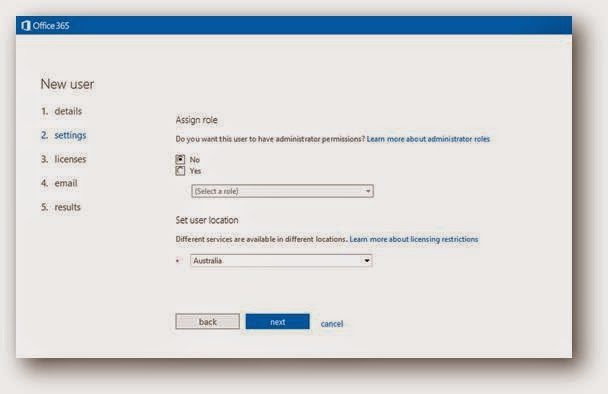
For the same user, we can provide the administrator role based on our need. Just select the Yes option under the Assign Role and greyed ‘Select a Role’ drop down list will show you a list of different administrator roles available.


Next step will be assigning the license for the user under the Office 365; we can assign users to specific set of the products under the Office 365 environment. Here in the following screen capture, you can see for my account; I no longer have any more licenses to assign for the specific user. In this case, the user will be created in the Office 365 cloud with no products to access in the Microsoft Office 365.


Now let’s see how the groups are created and managed in the Office 365. To create new security group, use the add option highlighted in the below screen capture. 


Fill in the display name for the user group and description is the optional column for your user group. Now click save to proceed to the next step of creating security group.


Now the following screen will show the list of users under the available users. Select the users that you need to add to the security group and click Add.


Service Settings

Service Settings is the area in which the administrator will be able to find the key administrator activity link and information. For the Exchange Server online, administrator can see the links referencing, policies to protect email from spam and malware, and help keep your data confidential, mail flow and auditing.

Creating site collection link, Lync-to-phone, dial-in conference, password expiry policies and other user software links to download and install in the user computer.

Service Setting contains the four main sections.

·         Mail

·         Sites

·         Voice Conferencing

·         User Software

·         Passwords


Mail – In this option, all the configuration falls under the Exchange on Office 365. We will study in detail about the same in the next article, and will explain this option under the Exchange admin center.

Sites – In this option, the administrator will be able set up the Site Collection to share and publish information online.

Voice & Conferencing – In this option, all the configuration falls under the Lync on Office 365. We will study in detail about the same in the next article, and will explain this option under the Lync admin center.

User Software – Here you can find a list of software for download and installed directly to your laptop or personal computers. You can see Office 2013, SharePoint Designer 2013 and Lync 2013. Office 2013 will help you to create, edit office related files like Document, PowerPoint, Excel, etc. SharePoint Designer 2013 helps to customize SharePoint sites. Lync 2013 is a tool for instant message, voice and data communication.

Passwords – Here, the administrator can manage the password expiration policy for the users under your Office 365.


Service Health

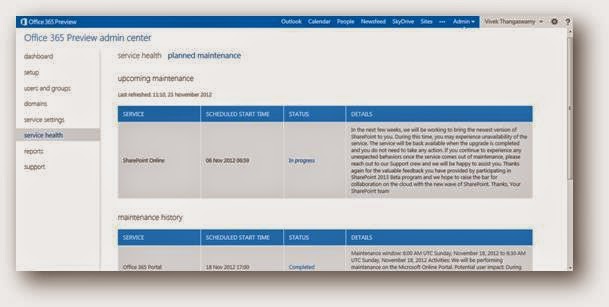
Service health will provide the complete dashboard view for all the services running under your Office 365. The view will contain the status for today with past six day’s status history.


Reports

In the reports section, the administrator will be able to view the site usage, site usage, activity log and filter summary of the mails, sites and other related contents. On the Reports page, the Overview tab has a list of reports you can view. Click other tabs to see reports for relevant categories.

To view reports about how your organization is using the Office 365 services, go to the Office 365 admin center, and click Reports in the left pane. You can use information from these reports to identify issues, filter data, and download data into Excel.


The reports overview page contains related reports for the following four main categories:

·         Mail

·         Protection

·         Rules

·         DLP (Data Loss Prevention)

Let’s explore each one of the categories with all reports offered to administrators.

Mail: The mail section covers three reports for the administrator Mailbox login activity, New and deleted mailboxes and New and deleted groups.


Mailbox login activity: The number of active and inactive mailboxes over time.


New and deleted mailboxes: The number of mailboxes deleted, created, and archived by day, week, month, and year.


New and deleted groups: The number of groups that were created and deleted by day, week, month, and year.


Protection: Shows inbound, outbound, malware detection mail traffic, based on how the mail is filtered, such as spam, virus, and transport rules. The following are list reports offered under the protection category filtered inbound mail, filtered outbound mail, inbound spam filtered, inbound malware detection summary, outbound, malware detection summary, top malware and outbound suspicious filtering summary


Rules


When you click a report name, you will see a report graph. You can:

Filter the data: To see only the data you are interested in, use the drop-down filters above the graph, or the time-span indicators below the graph.

See related information: For some reports, there will be additional information in a table below the graph. In addition, related reports are linked to from the thumbnail-sized pictures to the right of the main graph.


Sunday, 9 November 2014

Why Traditional Firewalls And Anti-Virus Cannot Keep Up with Today's Threats - Sujata Computers Pvt Ltd


UNIFIED THREAT MANAGEMENT (UTM)
 
 
In today’s increasingly mobile world, networks change constantly posing new challenges to IT team and to the administration on how to control security and protect the data. New services, access methods, and even devices continue to show up in networks at a frenetic pace.
For years, you must have been told that you need antivirus or some piece of software to protect your computer. These antivirus or software are usually reactive and alert you once they discover something unusual on a particular computer and not in the network. Of course, they are helpful but they do not provide full-proof security to your data and to your network.
 
Users are accessing an increasing number of applications with a wide range of device types, often times to get their job done, yet with little regard to the business or security risks. Meanwhile, datacenter expansion, network segmentation, virtualization and mobility initiatives are forcing you to re-think how to enable access to applications and data, yet protect your network from a new, more sophisticated class of advanced threats that are adept at evading traditional security mechanisms.
 
Below are some challenges that are now concerns for Mid-size and Enterprise Businesses -
  
Challenge #1 : Employees bringing their personal mobile and tablet at work creates data security a concern for IT team
 
Who could have foreseen the impact of WhatsApp, Twitter and Facebook,or iPads and Android smartphones and tablets, only a few years ago? Today, employees expect to use personal smartphones and mobile devices at work also known as Bring Your Own Device (BYOD), making data security a concern for IT teams.
  
Challenge #2 : New applications evade threat detection

Traditional or “first-generation” firewalls rely on scanning of port numbers or protocol that are used by applications to detect the  threat and to prevent any misbehavior or intrusion in the network.

Traditional firewalls cannot detect new applications that are accessed through web browser and do not use specific port number or prototype.
 
Challenge #3 : Multiple Devices or Tools Addressing Incoming Data Security Threats

With the new challenges and threats, there is a need to have multi-level security and to do so, we do not recommend customers to buy different brands of traditional firewall, Data Loss/Leak Prevention (DLP), Intrusion Prevention System (IPS), filtering of websites and data traffic, malware screening at the gateway level and patch management in the network. Different tools create problem of managing them effectively and there can be a problem of compatibility. 

From a performance point of view also it is not recommended as each tool/device performs its own inspection of network data, which means that data is inspected multiple times by multiple devices and that create a time latency in data transfer.

In below image, you can see the flow of the data and the possible ways in which threat can enter into the network.


BOTTOM-LINE :

As a network’s complexity increases, so does the expense required to manage that network.

Every administrator should carefully consider the TCO of add-on security appliances versus an integrated solution like UTM or Next-Gen Firewall before making significant infrastructure solution commitments.

UTM should be flexible in terms of output, should be future-ready and should be powerful enough to support your requirement.

The application, content, and user—the elements that run your business—then become integral components of your enterprise security policy. The result is the ability to align security with key business initiatives.

• Safely enable applications, users and content by classifying all traffic, determining the business use case and assigning policies to allow and protect the relevant applications.

• Prevent threats by eliminating unwanted applications to reduce the threat footprint and applying targeted security polices to block known vulnerability exploits, viruses, spyware, botnets and unknown malware (APTs).

• Embrace mobile computing by ensuring devices are properly configured and that they are protected from threats.

• Protect your datacenters through validation of applications, isolation of data, control over rogue applications and high speed threat prevention.

• Secure cloud-computing environments with increased visibility and control; deploy and maintain security policies at the same pace as your virtual machines.


As we write this, the best UTM solutions for networks include the following core security functions / policies in their arsenals:

·         Network firewalls perform stateful packet inspection.

·         IPS detects and blocks intrusions and certain attacks.

·         Application control provides visibility and control of application behavior and content. 

·         VPN enables secure remote access to networks. 

·         Content filtering halts access to malicious, inappropriate, or questionable websites and online content. 

·         IPv6 support in all network security functions protects networks as they migrate from IPv4 to IPv6.

·         Support for virtualized environments, both virtual domains and virtual appliances.

They also include additional security technologies that organizations can choose to deploy, including

·         Data loss prevention that blocks accidental or intentional loss of confidential, proprietary, or regulated data.

·         Anti-virus/anti-spam protection that prevents malicious payloads or unwanted messages from entering networks.

·         Endpoint control that enforces corporate security policies with remote users and devices.

·         Integrated wireless LAN (WLAN) controller to consolidate all wired and wireless traffic through a single device, to simplify policy creation and enforcement while reducing network complexity.

SOLUTION TO CHALLENGES ABOVE :
 
UTM solution is integration of multiple security features like firewall, application control, intrusion prevention, VPN, reporting and other elements into a single product. There are multiple brands for which Sujata Computers Pvt Ltd has expertise in.  We can recommend you an appropriate brand and model from Fortinet, SonicWall, Check Point, Cyberoam, Juniper, Palo Alto, Sophos and Cisco depending on your use, industry, existing and future infrastructure, budget and skill-set available with your IT team. 

 In short, we recommend UTM that includes following features:
  1. Firewall
  2. Application Control
  3. IPsec and SSL VPN
  4. IPS
  5. Web content filtering
  6. Anti-spam
  7. Data loss/leakage prevention
  8. Anti-virus and anti-spyware protection
  9. IPv6 native support
  10. Traffic shaping and bandwidth control
  11. Detailed reporting

    and if you have no constrain on budget, you should opt for UTM that has independent processors for one-single activity (feature) i.e the more silicon is in UTM the better performance it will deliver.

    We also take up responsibility of maintaining the UTM for its customers and help them implement it. We can sign an annual or long-term service and support contract for UTM and help our customers safeguard their infrastructure.

     
    For More Information, Read:
     

    1. 7 Tips for Establishing a Successful BYOD Policy - http://www.cio.com/article/2395944/consumer-technology/7-tips-for-establishing-a-successful-byod-policy.html
    2. BYOD policy Template - http://www.itmanagerdaily.com/byod-policy-template/ 
    3. https://www.avnotenough.com/


    CONTACT SUJATA COMPUTERS PVT LTD (INDIA) FOR UTM


    Dinesh Golecha | +91-8888165300 | dinesh.g@sujataindia.com
    Paresh Lodha | +91-7276000222 | paresh.lodha@sujataindia.com
     

    Saturday, 8 November 2014

    Overview of Tools Available for Microsoft Developers - Sujata Computers Pvt Ltd


    We Sujata Computers Pvt Ltd. are specialized partner for Microsoft developer’s tools.

    As a developer tools specialized partner we have expertise in providing licensing and solution for below tools.

    1.       Visual Studio:- Microsoft Visual Studio is an integrated development environment (IDE) from Microsoft. It is used to develop computer programs for Microsoft Windows, as well as web sites, web applications and web services. Visual Studio uses Microsoft software development platforms such as Windows API, Windows Forms, Windows Presentation Foundation, Windows Store and Microsoft Silverlight. It can produce both native code and managed code.
    Available Editions –
    a.       On-Premise : Professional | Professional Test | Premium | Ultimate.
    b.      Online – Basic | Professional | Advanced
    2.       MSDN:- Microsoft Developer Network is the portion of Microsoft responsible for managing the firm's relationship with developers and testers, such as hardware developers interested in the operating system (OS), and software developers developing on the various OS platforms or using the API and/or scripting languages of Microsoft's applications. The relationship management is situated in assorted media: web sites, newsletters, developer conferences, trade media, blogs and DVD distribution. The life cycle of the relationships ranges from legacy support through evangelizing potential offerings.
    3.       Azure:- Windows Azure is intended to simplify IT management and minimize up-front and on-going expenses. To this end, Azure was designed to facilitate the management of scalable Web applications over the Internet. The hosting and management environment is maintained at Microsoft data centres.
    4.       MS SQL:- SQL Server is a Microsoft product used to manage and store information. Technically, SQL Server is a “relational database management system” (RDMS). Broken apart, this term means two things. First, that data stored inside SQL Server will be housed in a “relational database”, and second, that SQL Server is an entire “management system”, not just a database. SQL itself stands for Structured Query Language. This is the language used to manage and administer the database server.
    Available Editions –  Standard | Enterprise |Business intelligence edition
    5.       InfoPath: -An application in the Enterprise editions of Microsoft Office for creating and editing XML-based forms. Formerly known as "XDocs" and "NetDocs," it enables users to build forms that are true XML documents.
    6.       Biz Talk Server:- BizTalk Server is Microsoft's central platform for Enterprise Application Integration (EAI) and Business Process Management (BPM) and embodies the integration and automation capabilities of XML and Web Services technologies.
    7.       Team Foundation Server:- Team Foundation Server is a Microsoft product which provides source code management, reporting, requirements management, project management, automated builds, lab management, testing and release management capabilities.

    Why You Should Consider Buying MSDN?
    1)      Get an access to all past and future versions of Visual Studio for free of cost. Free version upgrade and updates.
    2)      Get access to different Microsoft product licenses for free for the development and testing purpose without having to pay for any of the individual software. Download details here!
    3)      Full TFS license and TFS CAL is now included within all levels of MSDN Subscriptions. 
    4)      Get access to eLearning portal – User gets approx. 20-40 Hours of online training per calendar year. 
    5)      Tech Support Calls - Each MSDN includes 1-4 tech support incidents. Worth $500 each.
    6)      Get Free Azure Credits. MSDN includes a monthly allowance of Azure compute and storage.
    7)      Get training vouchers. Number of vouchers will depend on the number of licenses and type of licenses that you purchase.
    8)      Valid for 2 years. Renewal after that is optional.

    More Resources for Microsoft Developers’ Tools:
    1.       Comparison between different editions of Visual Studio – http://www.visualstudio.com/en-us/products/compare-visual-studio-products-vs.aspx
    2.       MSDN Product offerings for testing and development purpose – please find attached sheet.
    3.       30-day Trial version of Visual Studio – http://www.visualstudio.com/downloads/download-visual-studio-vs
    4.       Trial for Microsoft Azure – http://azure.microsoft.com/en-us/offers/ms-azr-0044p/

    Contact Sujata Computers Pvt Ltd for training and demo of any Microsoft developers’ tools.
                                                   
    Contact us :
    Mr. Paresh Lodha | +91-7276000222 | paresh.lodha@sujataindia.com
    Mr. Hemant Bhagwat | +91-9850362300 | hemant.bhagwat@sujataindia.com
     

    Beyond Heartbleed: Protecting Your Business with Symantec

    The discovery of the Heartbleed bug in April, 2014 exposed a serious vulnerability in OpenSSL, an open-source cryptographic library often used with applications and web servers like Apache and Nginx. This latest high profile, targeted attack allowed infiltrators access to the memory of web servers running vulnerable versions of the library. Heartbleed quickly compromised the privacy for communications applications on the Web such as e-commerce, banking, email, and instant messaging, and opened the door to the interception of user information, passwords, and identities.
    While the world now knows of the widespread havoc Heartbleed has caused to both businesses and individuals, it begs the question, “What happens when the next Heartbleed (or worse) comes along, and what can an organization do to weather yet another chapter in an all-too-familiar string of debilitating attacks?”
    As a worldwide leader in information protection, Symantec not only has a comprehensive suite of solutions to discover and remediate vulnerabilities today––no matter their origin––but also has the thought leadership and world-class expertise to stay ahead of the next “Heartbleed.” With industry leading security solutions coupled with a global team of security engineers, threat analysts, and researchers to safeguard businesses from malicious attacks, Symantec is poised to help protect organizations by helping them discover the vulnerabilities,remediating the damage through effective patching and repair, then helping to further protect critical data and resources from future incursions.
    Symantec security solutions include:
    • Symantec Control Compliance Suite
    • Symantec Certificate Intelligence Center
    • Symantec SSL Certificates
    • Symantec Validation and ID Protection Service
    • Symantec IT Management Suite powered by Altiris technology
    • Symantec Endpoint Protection

    Symantec has made available both a webinar recording and a white paper to help you better understand how to implement a ‘discover, remediate, and protect’ plan at your organization. Also, stay up to date on Heartbleed news from Symantec, and get at advice on how to limit your exposure.
    (Blog by Sanket Kadam)